Creating Donations
Recording donations is a core function of DonorLog. This guide will walk you through the process of creating donation records.
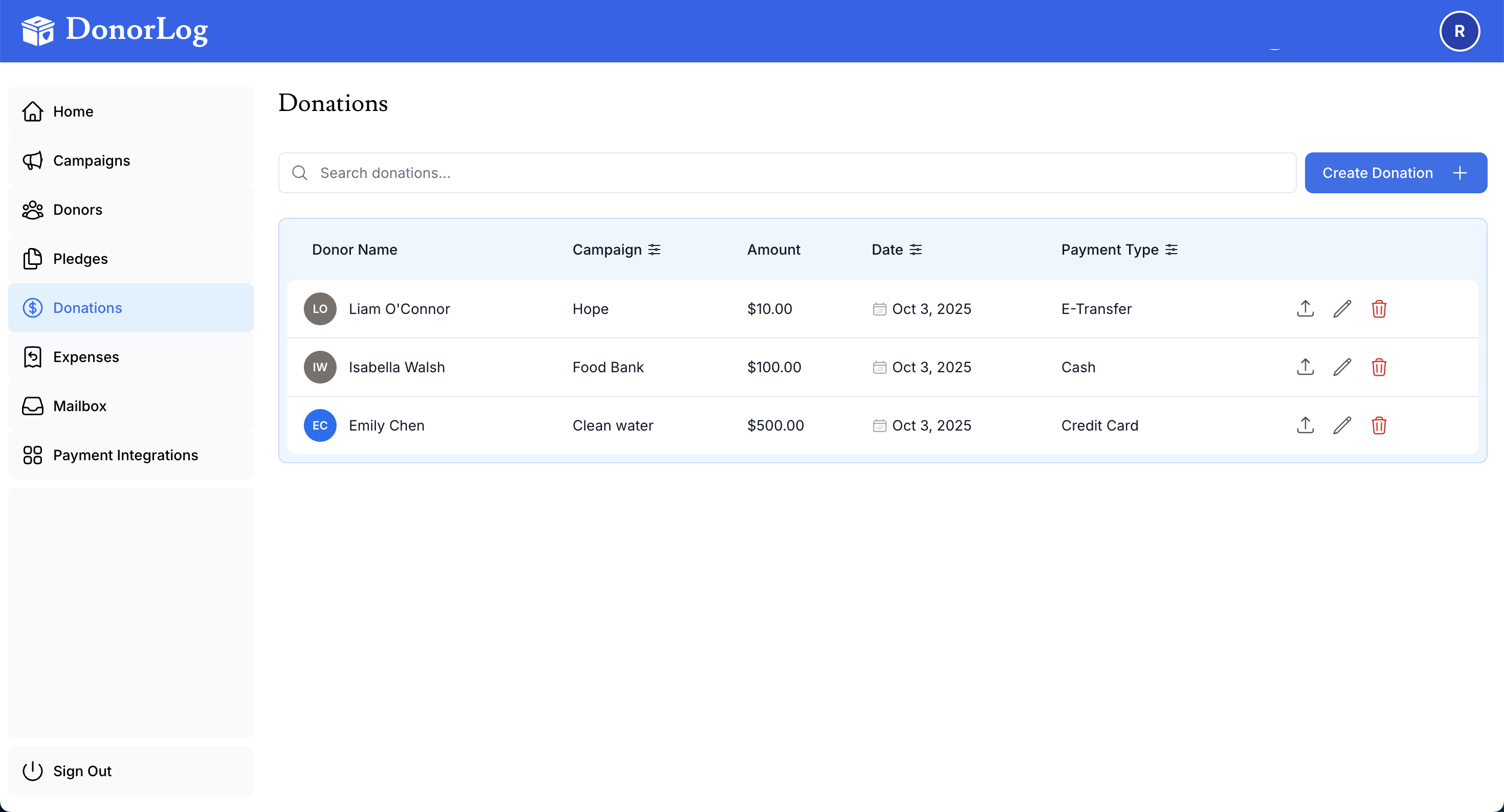
Overview
A donation record tracks:
- Who made the donation (donor)
- Which campaign it's for
- How much was donated
- When it was received
- How it was paid (payment type)
- Where it came from (source)
- Proof of payment (optional)
Make sure you have:
- Created the donor profile (or be ready to create one)
- Set up at least one campaign
- The donation amount and date
- Payment method information
Required Information
To create a donation, you need:
- Donor - Select from existing donors or create a new one
- Campaign - Choose which campaign this donation supports
- Amount - The donation amount in dollars
- Date - The date the donation was received
- Payment Type - How the donation was paid (Cash, Cheque, Credit Card, E-Transfer)
- Source - Where the donation came from (Manual, Square, PayPal, etc.)
Step-by-Step: Creating a Donation
Step 1: Navigate to Donations
- Click on "Donations" in the main navigation menu
- You'll see a list of all donations
Step 2: Open the Create Donation Form
- Click the "Add Donation" button (usually at the top right)
- A form will open for entering donation details
Step 3: Select a Donor
- Click in the "Donor" field
- Start typing the donor's name
- Select the donor from the dropdown list
- Or click "Create New Donor" if the donor doesn't exist yet
Step 4: Select a Campaign
- Click in the "Campaign" field
- Select the campaign this donation is for
- If you don't have a campaign yet, you'll need to create one first
Step 5: Enter Donation Details
Fill in the donation information:
Amount: 100.00
Date: 2024-01-15
Payment Type: Credit Card
Source: Manual
Step 6: Add Optional Information
Notes (optional):
- Add any relevant notes about the donation
- Example: "Monthly recurring donation" or "In memory of..."
Proof of Payment (optional):
- Click "Choose File" to upload a receipt, invoice, or screenshot
- Supported formats: PDF, JPEG, PNG, JPG
- Maximum file size: 10MB
Link to Pledge (optional):
- If this donation is part of a pledge, select the pledge
- The system will automatically update the pledge payment status
Step 7: Save the Donation
- Review all the information
- Click the "Create Donation" button
- You'll see a success message
- The donation will appear in your donations list
Payment Types
DonorLog supports several payment types:
Cash
- Physical cash donations
- No proof of payment typically available
- Record immediately when received
Cheque
- Check or cheque donations
- Upload a photo or scan of the cheque as proof
- Wait for cheque to clear before considering fully processed
Credit Card
- Credit or debit card payments
- May come from online payment processors
- Upload transaction receipt as proof
E-Transfer
- Electronic bank transfers
- Interac e-Transfer or similar
- Upload confirmation email or screenshot as proof
📖 Learn more: Payment Types
Sources
The source field indicates where the donation came from:
- Manual - Entered manually into the system
- Square - Received through Square payment processing
- PayPal - Received through PayPal
- TapTap - Received through TapTap payment system
- Bank - Direct bank transfer or deposit
- E-Transfer - Electronic transfer
- Plaid - Received through Plaid integration
Bulk Donations
If you need to record multiple donations at once, use the bulk donation feature:
- Go to "Donations" → "Bulk Donations"
- Add multiple donation rows
- Fill in the information for each
- Validate all entries
- Submit all at once
This is especially useful for:
- Recording donations from events
- Importing donations from spreadsheets
- Processing multiple donations at once
📖 Learn more: Bulk Donations
Uploading Proof of Payment
Proof of payment helps maintain accurate records and is useful for:
- Audit purposes
- Dispute resolution
- Record keeping
Supported File Types
- PDF documents
- Image files (JPEG, PNG, JPG)
File Size Limits
- Maximum size: 10MB per file
Best Practices
- Upload clear, readable images
- Include transaction IDs or reference numbers
- Keep files organized by date or donor
📖 Learn more: Uploading Proofs
Linking to Pledges
If a donation is part of a pledge:
- Select the pledge from the dropdown
- The system will automatically:
- Update the pledge's payment status
- Track progress toward the pledge amount
- Calculate remaining balance
This helps you track which donations fulfill which pledges.
Viewing Donations
After creating a donation, you can:
- View it in the donations list
- See it on the donor's profile page
- Find it in campaign reports
- Include it in exports
📖 Learn more: Viewing Donations
Editing Donations
To edit a donation:
- Find the donation in the list
- Click the edit icon
- Make your changes
- Click "Save Changes"
Note: Be careful when editing donation amounts or dates, as this may affect tax receipts and reports.
Common Questions
Q: Can I record a donation without a campaign?
A: No, every donation must be associated with a campaign. Create a general campaign if needed.
Q: What if I don't know the exact date?
A: Use your best estimate. You can always edit it later if you find the exact date.
Q: Do I need to upload proof of payment?
A: No, it's optional. However, it's recommended for audit purposes and record keeping.
Q: Can I delete a donation?
A: Yes, but be careful. Deleting a donation will remove it from all reports and may affect tax receipts.
Q: What happens if I link a donation to a pledge?
A: The system automatically updates the pledge's payment status and tracks progress.
What's Next?
After creating a donation, you can:
- Generate a tax receipt for the donor
- View the donation in reports
- Export donations for accounting
- Create another donation for the same donor
Ready to record a donation? Go to the Donations page and click "Add Donation"!