Sending Emails
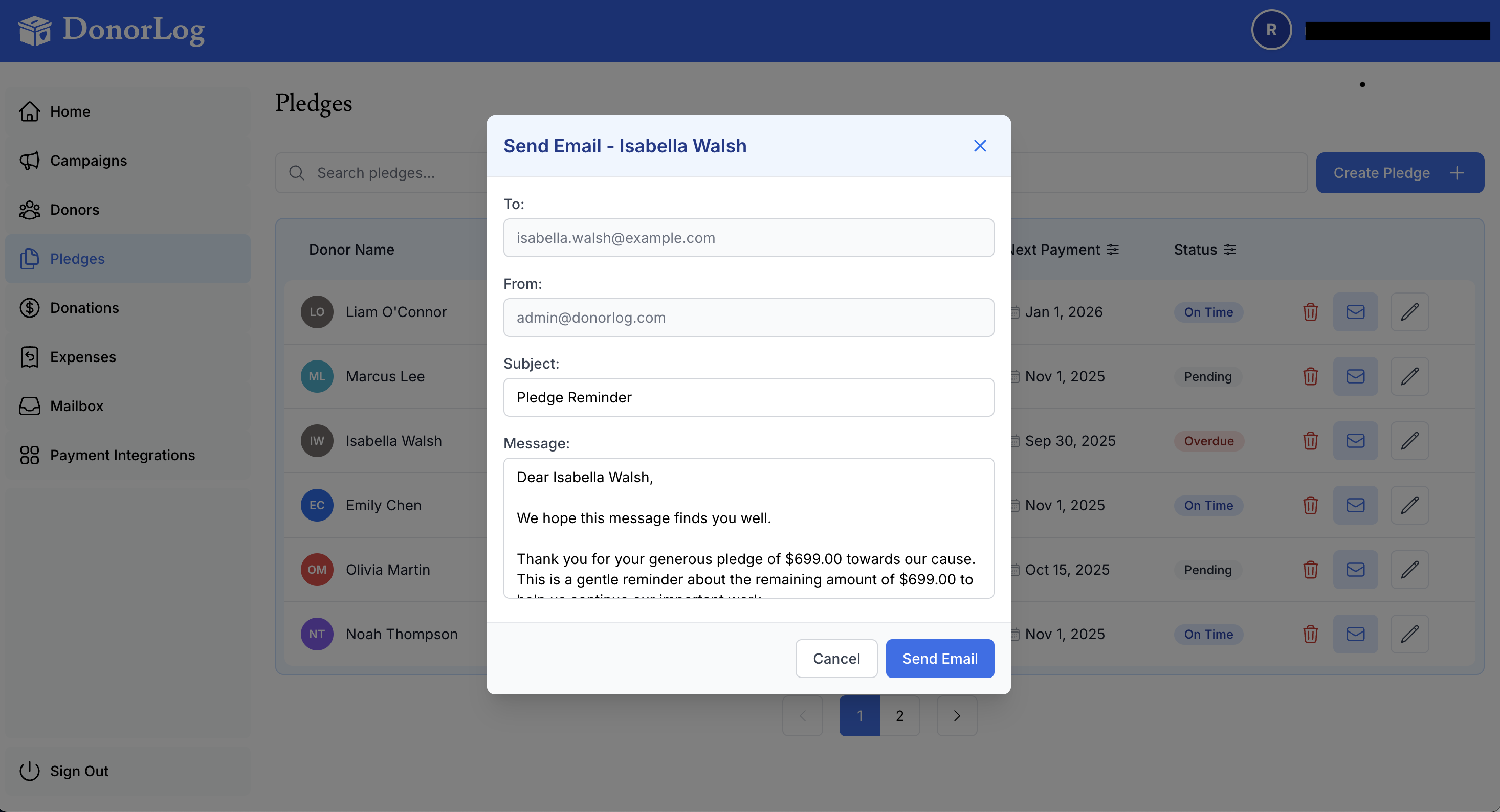
DonorLog allows you to send emails to donors for various purposes. This guide will show you how to send emails through the system.
Overview
Email functionality in DonorLog helps you:
- Send donation confirmations
- Email tax receipts
- Send pledge reminders
- Communicate with donors
- Track email communications
Types of Emails
Donation Confirmation
Automatically sent when a donation is recorded (if donor has email).
Tax Receipt
Sent when you generate and email a tax receipt.
Pledge Reminder
Sent to remind donors of upcoming pledge payments.
Custom Email
Manually composed emails to individual donors or groups.
Sending a Tax Receipt via Email
Step 1: Generate the Receipt
- Go to the donor's profile page
- Click "Generate Tax Receipt"
- Select the tax year
- The receipt will be generated as a PDF
Step 2: Email the Receipt
- After generating, click "Email Receipt"
- The system will send the receipt to the donor's email address
- You'll see a confirmation message
Note: The donor must have an email address on file to receive emails.
📖 Learn more: Emailing Receipts
Sending Pledge Reminders
Step 1: Navigate to Pledges
- Go to the "Pledges" page
- Find the pledge that needs a reminder
- Click on the pledge to view details
Step 2: Send Reminder
- Click "Send Reminder" or "Email Donor"
- The system will send a reminder email
- The email includes:
- Pledge details
- Amount due
- Payment date
- Payment instructions
Viewing Email Logs
All emails sent through DonorLog are logged for your records.
Accessing Email Logs
- Go to a donor's profile page
- Look for the "Email History" or "Communications" section
- You'll see a list of all emails sent to that donor
Email Log Information
Each log entry shows:
- Date Sent - When the email was sent
- Type - What kind of email (receipt, reminder, etc.)
- Status - Whether it was sent successfully
- Subject - Email subject line
Email Requirements
For emails to work properly:
- Donor Must Have Email: The donor record must include an email address
- Valid Email Format: Email must be in a valid format
- System Configuration: Email service must be properly configured
Email Status
Emails can have different statuses:
- Sent - Email was successfully sent
- Failed - Email could not be sent (check email address)
- Pending - Email is queued to be sent
- Bounced - Email was rejected by recipient's server
Unsubscribe Management
Donors can unsubscribe from emails:
- Donors receive unsubscribe links in emails
- When they unsubscribe, it's recorded in their donor profile
- You can see unsubscribe status in the donor record
- Unsubscribed donors won't receive automated emails
📖 Learn more: Unsubscribe Management
Best Practices
- Keep Email Addresses Updated: Ensure donor email addresses are current
- Respect Unsubscribes: Don't send emails to unsubscribed donors
- Use Appropriate Timing: Send reminders at appropriate times
- Personalize When Possible: Use donor names in emails
- Track Communications: Review email logs regularly
Common Questions
Q: Why didn't my email send?
A: Check that the donor has a valid email address. Also check the email logs for error messages.
Q: Can I send emails to multiple donors at once?
A: Currently, emails are sent individually. You can send to multiple donors by selecting them and sending emails one by one.
Q: What if a donor doesn't have an email address?
A: You'll need to add an email address to their donor record before you can send emails. Alternatively, you can print and mail receipts.
Q: Can I customize email content?
A: Email templates are predefined, but you can add notes when sending. For custom content, you may need to use external email tools.
Q: How do I know if an email was received?
A: The system shows if an email was sent successfully, but doesn't track if it was opened. Check email logs for delivery status.
Troubleshooting
Email Not Sending
- Check Email Address: Verify the donor has a valid email
- Check Email Logs: Look for error messages
- Verify Configuration: Ensure email service is properly set up
- Check Unsubscribe Status: Don't send to unsubscribed donors
Email Bounced
- Verify Email Address: The address may be incorrect
- Contact Donor: Ask for a correct email address
- Update Donor Record: Update with the correct email
Related Topics
- Email Templates - Understanding email formats
- Email Logs - Viewing email history
- Unsubscribe Management - Managing unsubscribes
- Emailing Receipts - Sending tax receipts
Need to send an email? Generate a tax receipt or send a pledge reminder from the respective pages!