Creating Pledges
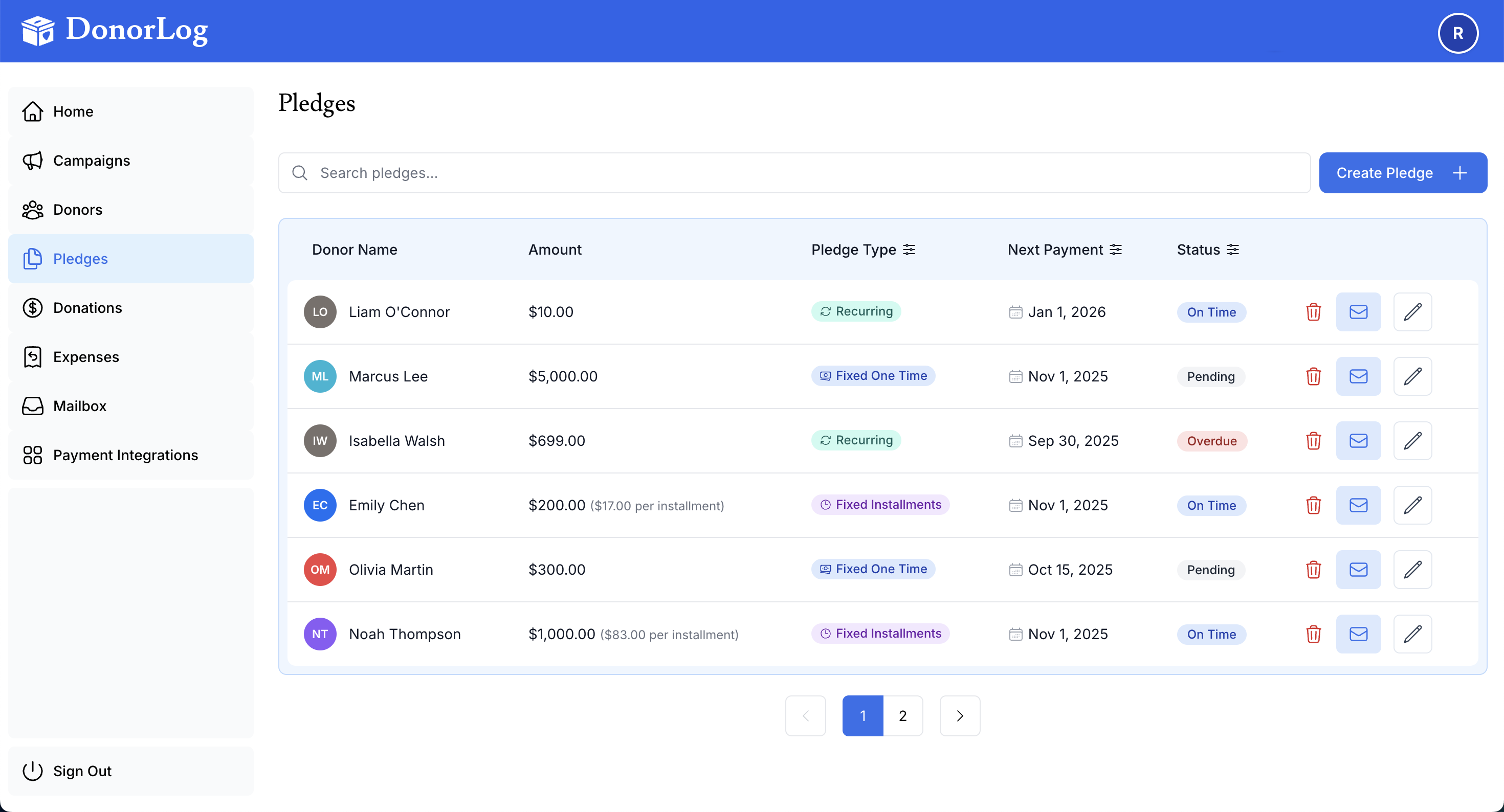
Pledges allow you to track recurring donation commitments from donors. This guide will show you how to create and manage pledges in DonorLog.
What is a Pledge?
A pledge is a commitment from a donor to make donations over time. Pledges help you:
- Track recurring donation commitments
- Monitor payment schedules
- Send reminders for upcoming payments
- Plan your fundraising goals
Pledge Types
DonorLog supports different types of pledges:
Fixed One-Time Pledge
A single commitment for a specific amount to be paid once.
Example: Donor pledges $500 to be paid on a specific date.
Recurring Pledge
A commitment to make regular payments over time.
Example: Donor pledges $100 per month for 12 months.
Required Information
To create a pledge, you need:
- Donor - The person making the pledge
- Campaign - Which campaign the pledge supports
- Pledge Type - Fixed one-time or recurring
- Amount - Total pledge amount
- Payment Type - How payments will be made (Cash, Cheque, Credit Card, E-Transfer)
Step-by-Step: Creating a Pledge
Step 1: Navigate to Pledges
- Click on "Pledges" in the main navigation menu
- You'll see a list of all pledges
Step 2: Open the Create Pledge Form
- Click the "Add Pledge" button
- A form will open for entering pledge details
Step 3: Select a Donor
- Click in the "Donor" field
- Start typing the donor's name
- Select the donor from the dropdown
- Or create a new donor if needed
Step 4: Select a Campaign
- Click in the "Campaign" field
- Select the campaign this pledge supports
Step 5: Choose Pledge Type
Select the type of pledge:
Fixed One-Time:
- Single payment commitment
- Enter the total amount
- Set the payment date
Recurring:
- Regular payments over time
- Enter the total amount
- Choose frequency (Monthly, Weekly, etc.)
- Set installment amount
- Set start and end dates
Step 6: Enter Pledge Details
For a Fixed One-Time Pledge:
Pledge Type: Fixed One-Time
Total Amount: 500.00
Payment Date: 2024-02-01
Payment Type: Credit Card
For a Recurring Pledge:
Pledge Type: Recurring
Total Amount: 1200.00
Frequency: Monthly
Installment Amount: 100.00
Number of Installments: 12
Start Date: 2024-01-01
End Date: 2024-12-31
Payment Type: E-Transfer
Step 7: Add Optional Information
Notes:
- Add any relevant notes about the pledge
- Example: "Annual giving commitment" or "Special campaign pledge"
Next Payment Date:
- For recurring pledges, set when the first payment is due
- The system will calculate subsequent payment dates
Step 8: Save the Pledge
- Review all the information
- Click the "Create Pledge" button
- You'll see a success message
- The pledge will appear in your pledges list
Pledge Frequencies
For recurring pledges, you can choose:
- Weekly - Payments every week
- Monthly - Payments every month
- Quarterly - Payments every 3 months
- Annually - Payments once per year
The system will automatically calculate the next payment date based on the frequency.
Tracking Pledge Payments
When you record a donation that's part of a pledge:
- Create the donation as usual
- Select the pledge from the "Link to Pledge" dropdown
- The system will automatically:
- Update the pledge's payment status
- Track how much has been paid
- Calculate the remaining balance
- Update the next payment date
📖 Learn more: Tracking Pledge Payments
Pledge Status
Pledges have different statuses:
- Active - Pledge is ongoing, payments are being made
- Completed - All payments have been received
- Overdue - A payment is past due
- Cancelled - Pledge was cancelled
Viewing Pledges
You can view pledges:
- In the main pledges list
- On the donor's profile page
- In campaign reports
- Filtered by status or date
Managing Pledges
After creating a pledge, you can:
- Edit - Update pledge details
- View Payments - See all payments made toward the pledge
- Send Reminders - Remind donors of upcoming payments
- Mark Complete - When all payments are received
- Cancel - If the pledge is cancelled
📖 Learn more: Managing Pledges
Common Questions
Q: Can I change a pledge after creating it?
A: Yes, you can edit most pledge details. However, be careful when changing amounts as it may affect payment tracking.
Q: What happens if a donor misses a payment?
A: The pledge will show as overdue. You can send a reminder or adjust the payment schedule.
Q: Can I create a pledge without a specific end date?
A: For recurring pledges, it's best to set an end date. However, you can extend it later if needed.
Q: How do I record payments for a pledge?
A: When creating a donation, select the pledge from the "Link to Pledge" dropdown. The system will automatically update the pledge.
Q: Can a donor have multiple pledges?
A: Yes, a donor can have multiple pledges for different campaigns or time periods.
Best Practices
- Be Specific: Clearly define the pledge amount and schedule
- Set Reminders: Use the system to send payment reminders
- Track Payments: Always link donations to pledges when applicable
- Communicate: Keep donors informed about their pledge status
- Be Flexible: Adjust schedules if donors need to change payment dates
What's Next?
After creating a pledge, you can:
- Track payments as they come in
- Manage the pledge and update status
- Send reminders for upcoming payments
- View pledge reports in campaign analytics
Ready to create a pledge? Go to the Pledges page and click "Add Pledge"!